
Documentation
Everything you need to know about RuneSpoke Hub
IDE & CLI Extensions
Connect your editor or command-line tool to RuneSpoke so AI chat, file access, and project context all flow through one workspace. Each registration produces a unique API key - paste it into the extension config and you're live.
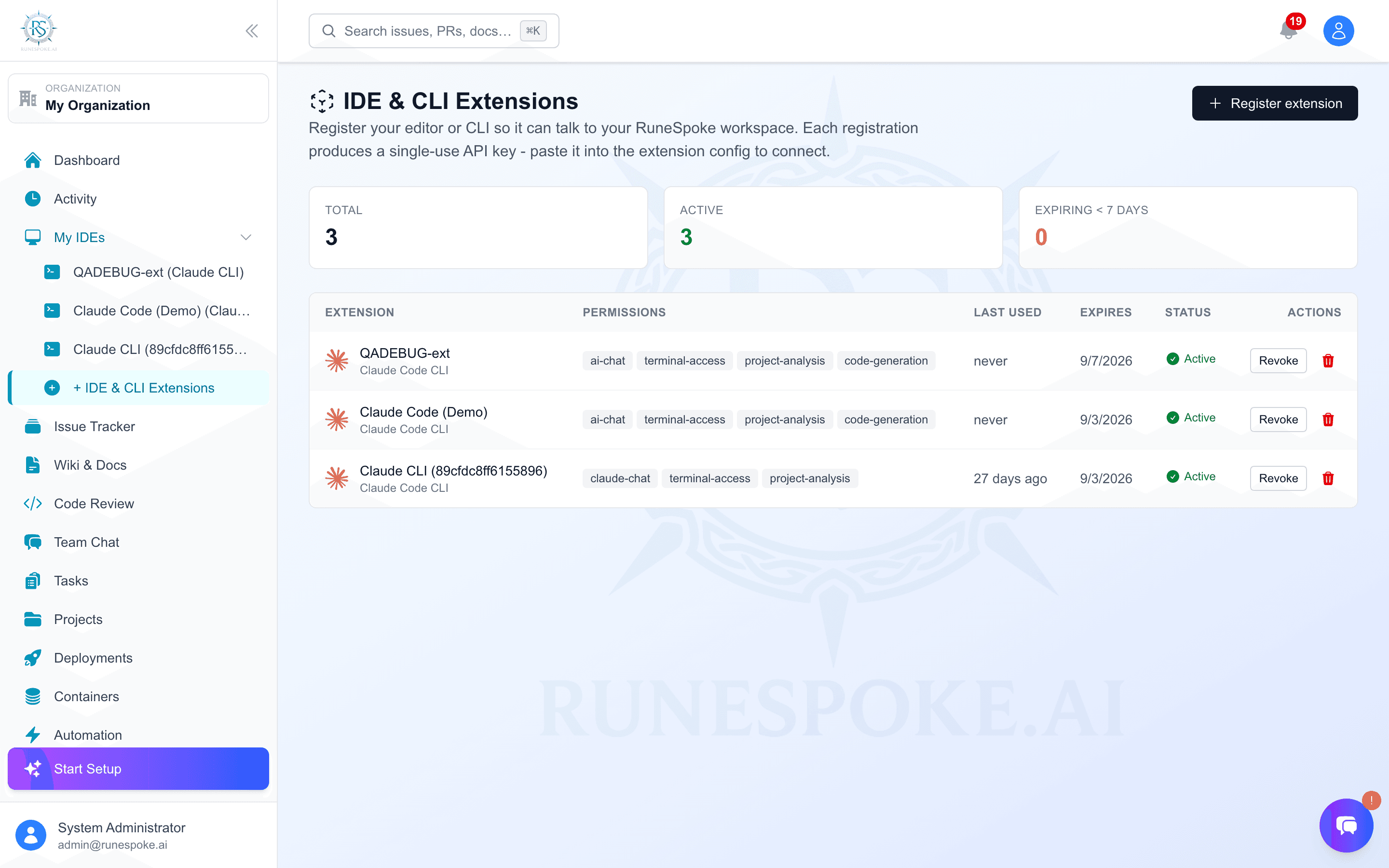
The 3-step flow (same for every IDE)
- 1Install the extension for your IDE (instructions per-IDE below).
- 2Open Dashboard → Extensions → click Register extension → pick your IDE → name it → submit.
- 3Copy the API key from the yellow banner (shown once) and paste it into your extension's connection prompt.
What you get when you connect
Realtime project sync
Files, open tabs, terminal output, and cursor position stream into the dashboard - no copy-paste.
One AI router, every IDE
The platform picks the best AI provider (Claude, GPT-4, Gemini) per request based on your tier rules. Same routing whether you ask from VS Code, Vim, or the web.
Shared issue + wiki context
Your extension can read open RuneFlow issues and link to wiki pages without leaving the editor.
Per-key permissions
Each registration carries its own permission scope. Want a read-only key for a teammate? Uncheck file-access and code-generation.
Setup by IDE
Cursor IDE
The RuneSpoke plugin for Cursor ships as a VSIX. It uses an embedded WebSocket bridge so you get realtime sync with the dashboard.
Install
- 1Download the latest VSIX/runespoke-cursor-0.1.0.vsix
- 2In Cursor: Cmd-Shift-P → "Extensions: Install from VSIX..."
- 3Select the downloaded file and reload Cursor when prompted.
Configure
- 1Open the RuneSpoke panel from the activity bar (the rune icon).
- 2Click "Connect to RuneSpoke Hub" and paste the API key from the dashboard.
- 3Cursor will show "Connected" once the bridge handshake completes.
VS Code
Same plugin as Cursor (Cursor is a VS Code fork). Install from the marketplace or from the VSIX.
Install
- 1Marketplace linkvscode:extension/runespoke.runespoke-companion
- 2Or download the VSIX/runespoke-cursor-0.1.0.vsix
- 3In VS Code: Cmd-Shift-P → "Extensions: Install from VSIX..."
Configure
- 1Cmd-Shift-P → "RuneSpoke: Connect".
- 2Paste the API key from the dashboard.
- 3The status bar shows "RuneSpoke ✓" when connected.
Claude Code CLI
A thin bridge that lets Claude Code (the official CLI from Anthropic) talk to your RuneSpoke workspace, AI router, and issue tracker.
Install
- 1Install via npm
npm install -g @runespoke/claude-cli
- 2Verify the install
runespoke-claude --version
Configure
- 1In your project directory, run:
- 2runespoke-claude connect
- 3When prompted, paste the API key from the dashboard.
- 4The CLI writes the connection to ~/.runespoke/config.json and you can start using Claude Code with full workspace context.
JetBrains IDEs
Works across IntelliJ IDEA, WebStorm, PyCharm, GoLand, Rider, and CLion - one plugin, all IDEs.
Install
- 1JetBrains Marketplacehttps://plugins.jetbrains.com/plugin/runespoke
- 2Or in IDE: Settings → Plugins → search "RuneSpoke" → Install
- 3Restart the IDE.
Configure
- 1Settings → Tools → RuneSpoke.
- 2Paste the API key in the "API Key" field.
- 3Click "Test Connection". Save.
Vim / Neovim
Lightweight Lua plugin (Neovim) with Vim 8+ compatibility.
Install
- 1vim-plug
Plug 'runespoke/runespoke-vim'
- 2Lazy.nvim
{ 'runespoke/runespoke-vim' } - 3Then in Vim:
:PlugInstall
Configure
- 1:RunespokeConnect
- 2Paste the API key when prompted.
- 3:Runespoke chat to start an inline AI session.
Sublime Text
Package Control-installable RuneSpoke companion.
Install
- 1Cmd-Shift-P → Package Control: Install Package
- 2Search for "RuneSpoke" and install.
Configure
- 1Preferences → Package Settings → RuneSpoke → Settings.
- 2Set the api_key field to the key from the dashboard.
Emacs
MELPA-installable runespoke.el package.
Install
- 1M-x package-install RET runespoke RET
- 2Add to init.el
(require 'runespoke)
Configure
- 1M-x runespoke-connect
- 2Paste the API key when prompted.
- 3Set runespoke-api-key in customize for persistence.
Security notes
- API keys are hashed (pbkdf2, 100k iterations, sha256) before storage. We can't recover them - that's why the dashboard shows the plaintext key once at registration time.
- Keys expire after 90 days by default. The dashboard surfaces any registration expiring within 7 days in the stats bar.
- Revoke instantly from the dashboard - the extension loses access on its next request, no restart needed.
- If you suspect a key was leaked, revoke it and register a new one. Never commit your API key to git.
Troubleshooting
"Invalid API key" error in the IDE
cur_, vsc_, cli_, etc.) must be intact. If you lost the key, you have to register a new extension - we can't recover it from the hash.